- double click on the ACCESS icon if it appears on your desktop when you log in
- at the bottom left of the screen choose programs from the start menu and select ACCESS
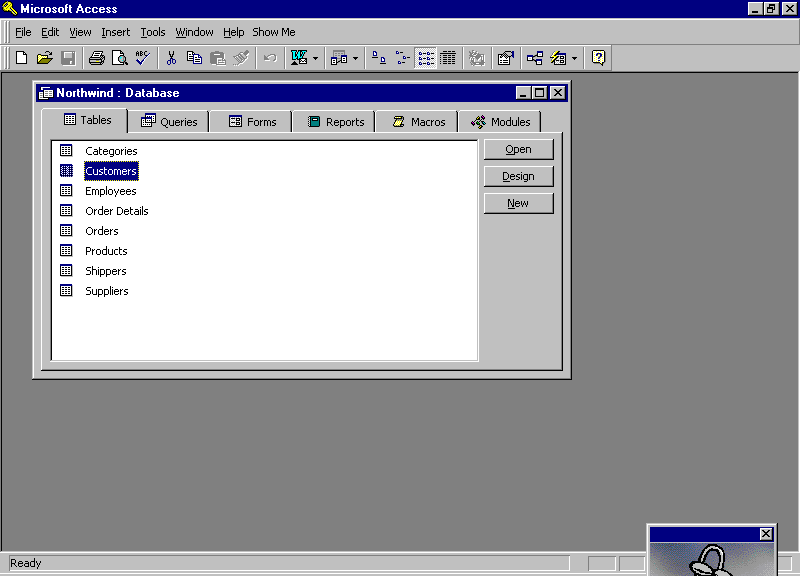
Double click on the table called Customers. You should now see the contents (data) in the table:
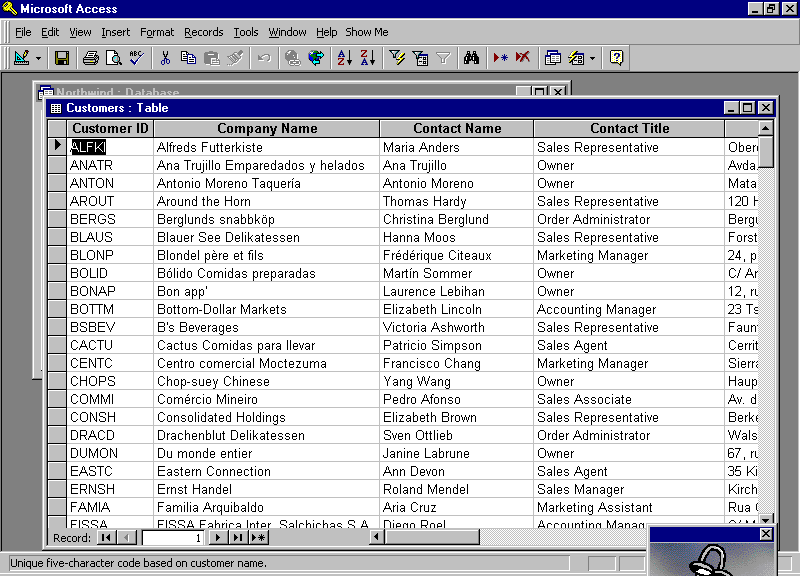
This is called the Datasheet View. It is the form for update and display of the actual data contents of a database file/table.
The Design View gives the actual structure of the table, i.e. it defines the relation schema. To open it, double click on the Design icon (2nd. from the left). The display should change from the data sheet view to the following design view.

Data type defines the type of data allowed in that field. There are a number of different data types you can use. Access makes it easy to choose by listing them for you. To see this, click on the data type field for Customer ID. A down arrow will appear in the far right end of the data type slot. Click on that arrow and Access will display the different data types available.
The different attributes/fields are listed row by row in the Design View. Each row can be highlighted separately by clicking on it. Once highlighted, the tab General below the table will show parameters that can be set for that attribute. For example, Field Size is a non-negative integer giving the maximum number of characters that are allowed in a field; Required, which can be set to Yes or No, is a parameter that states whether the attribute is required or not, i.e. is it allowed have a NULL value; Allow Zero Length which can be set to Yes or No, is a parameter that states whether the attribute can be e.g. the empty string.
Note at the left of the Customer ID field a small key symbol. This indicates that the Customer ID has been designated as the primary key for this table.
How can we locate a particular customer in the customer table? We don't want to look through all 91 records to locate one individual. First, go back to the data sheet view of the customer table. To do this, locate the small icon in the upper left corner. It will resemble a small table. Click on that, and you should see the table of data we first saw.
Say
we want to find the record with Customer ID corresponding to
PARIS. Click once on the
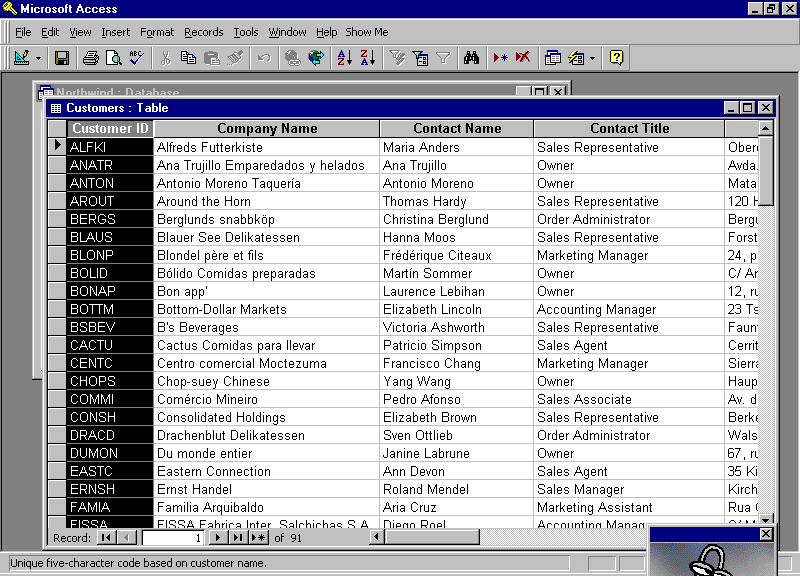
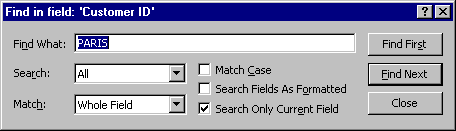
- Find all the Company Names of Customers in Madrid
- Find all the Company Names of Customers in Nantes
- Find a Company Name whose Contact (Sur)Name is Ottlieb
- Find all Contact Names of Customers whose postal code is 10100
- Records can be sorted based on any attribute: The sorting above is alphabetical on Customer ID. To sort on another attribute, click on the column heading, and from the Records menu at the top choose Sort. Experiment with sorting on addresses, phone numbers, etc. When sorted alphabetically on the Contact Name attribute, what is the Customer ID of the last record?
- Close ACCESS completely.
- Start ACCESS again, this time selecting Blank Access Database.
- Under File Name: enter "lab1.mdb". Make sure the entry after Save in: is where you want to save the file (you should here save in a special CT230 folder) Click on the create button.
- Click on the New icon in the tool bar (3rd. from the left). From the options, choose Design View
- To design the table, enter under Field Name the first attribute name you want for this table. Click on the corresponding box under Data Type and choose by clicking on the down arrow. Optionally, enter also a data description. Further attributes can be entered in the 2nd., 3rd., 4th. rows etc.
- By right clicking immediately to the left of any row corresponding to an attribute, you will be given a menu from which you can choose that attribute as a primary key. If you enter some attributes and then choose save, you will automatically be prompted to choose which attribute corresponds to the primary key.
-
TO BE HANDED IN
Create a new blank database with one table called Customers with schema Customers(ID, FIRSTNAME, LASTNAME, ADDRESS, CITY, STATE, ZIPCODE). The Data Type of ID should be AutoNumber, STATE should be restricted to 2 letters, and zipcode a 5-digit number. ID should be the primary key. Open the table in Datasheet View, and make up five entries. Along with these add the two entriesJohn Lalor, Sara Green, 32 Hawthorn Drive, 109 Beech Park, Albany, NY 00508 Gary, IN 46517
Order your table (which should now have seven entries) based on ZIPCODE, print it out and hand it in.